
After registering for the JAMB UTME exam, the printout given to you at the JAMB CBT centre usually does not contain the exam date, venue and time (exam schedule). This is because the Joint Admission and Matriculation Board (J.A.M.B) schedules candidates for the exam a few weeks after the registration has ended.
To know the date you will write your exam, the time and venue, you need to reprint your JAMB UTME exam slip.
In this article, we will teach you how to reprint your JAMB UTME exam slip and what to do after that.
Table of Contents
How to Print JAMB UTME Exam Slip with your Phone
We strongly recommend that you check if your JAMB UTME exam slip, which contains your exam schedule, is ready before going to a cyber cafe to print it out.
Why is this necessary?
You might go to a cyber café and discover that your exam slip is not yet available for printing, or that only the old version (without your exam date, time, and centre) is showing. This can lead to unnecessary stress, wasted time, and extra cost.
By checking and downloading your JAMB UTME exam slip on your phone first, you can confirm that:
- Your exam date and time have been released
- Your exam centre is clearly stated
Follow the steps below to print your JAMB UTME exam slip with your mobile phone;
Go to your phone browser, preferably Google Chrome.
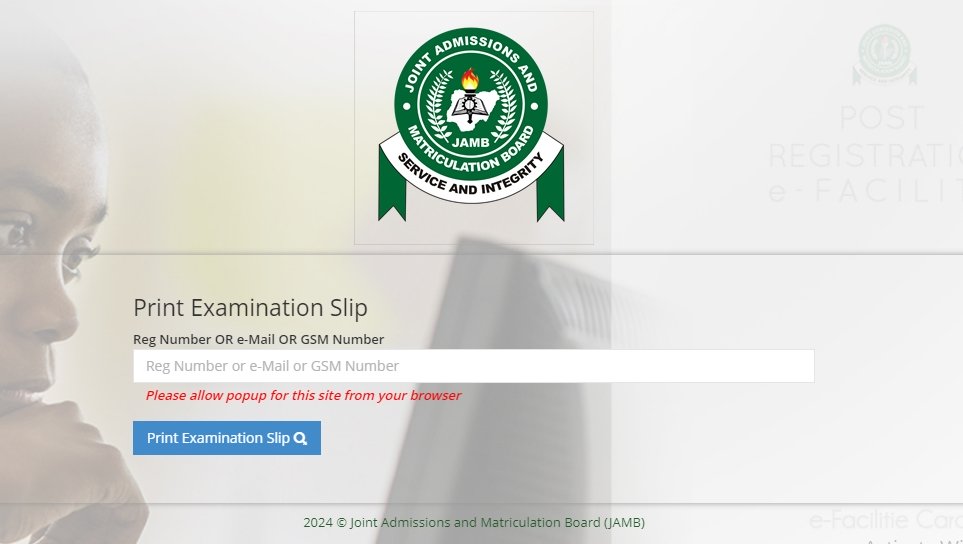
Visit the JAMB UTME exam slip printing page here.
Once the page loads, switch to desktop mode on your Google Chrome browser by clicking the three dots at the top right corner, scroll down to locate desktop mode, and then tick the box. See the image below.
Type in either your JAMB registration number, email address used during registration or your phone number. Click the “print examination slip” button.
A notification might appear, prompting you to allow pop-ups, click on accept or yes. Your JAMB UTME exam slip containing your exam schedule will appear.
Click on the three icons on the top-right side of the screen, scroll down to “share”, click on it and select print from the list of options. Select “Save as PDF” and click the ” Download as PDF icon to save to your device.
Once you have confirmed this, you can simply take the downloaded slip (PDF or screenshot) to any cyber café for printing, saving yourself time and avoiding disappointment.
How to print the JAMB UTME Exam Slip on a Computer
If you have a computer at home or you are trying to print your exam slip at a cyber cafe, you can follow the steps of below;
Open your preferred internet browser (Google Chrome, Firefox, Edge or Opera).
Visit the JAMB UTME exam printing page.
Enter your JAMB registration number, email address or phone number in the space provided and click the print examination slip button.
Your exam slip will appear, containing your information. If you can see your exam date, venue and time, you can print by clicking the Ctrl and P buttons at the same time.
What Next?
Now that you have printed your JAMB UTME exam slip, the next step to take is to check your exam venue and visit the location before the exam.
This helps you to familiarise yourself with the route, estimate the travel time, and avoid getting lost or arriving late on the exam day. Visiting the centre ahead of time also reduces exam-day anxiety and allows you to plan properly, especially if the venue is far from your home.
Make sure you also note important details on your slip, such as the exam date and time. You definitely do not want to go to your exam venue two days after you were scheduled.
Keep preparing and practising for the exam.
FAQ
The JAMB UTME Slip printing page is blank. What do I do?
If the page is blank, it means JAMB has not enabled the UTME exam slip printing process on the portal. You have to wait and try later.
I heard from a legitimate source that I can print my UTME Slip, but when I visit the page, it doesn’t load properly. What should I do?
When JAMB announces that candidates can print their exam slips, there is usually a rush on the portal, which often leads to heavy traffic and slows down the server. In such situations, it is advisable to check your JAMB UTME slip late at night, preferably around midnight, when fewer candidates are accessing the portal.
After printing my JAMB UTME Slip, I discovered that there was a mistake in my biodata
If there was a mistake in your name or date of birth, it means there is an error on your NIN, because JAMB retrieves your personal details directly from your NIN. To fix this, attempt your exam first, then visit an NIN registration centre (e.g banks) to correct the information on your NIN. Immediately the correction is made, visit the JAMB office to effect the correction on the JAMB database.
My exam centre/venue is far, can I change it?
No, you cannot. If your exam centre is several hours away from where you live, you may consider lodging at a hotel or short stay close to the exam venue (with an adult) a day before the exam.
My JAMB UTME exam date, venue and time do not appear on my exam slip. What should I do?
It means you have not been scheduled. Keep checking until you see it.
What will happen if I miss the date or time of the exam?
If you miss the scheduled time for your exam, you may still be able to attempt the exam, provided it’s on the same date. However, if you miss the date, you won’t be able to attempt the exam.
I have an issue that is not stated here. How do I contact JAMB?
Contacting JAMB is a bit tricky; you might send a message and not get a response. Read our article on how best to reach out to JAMB and get a response faster.
Did you find this article helpful? Don’t forget to share using the share buttons below.
